
TL;DR / Conclusion: In the era of deepfakes and data leaks, the video feed of your child is a sensitive asset. Many parents are uncomfortable with platforms that force “Camera On” policies or lack strict controls over who owns the lesson recordings. After auditing the Camera Protocols, Data Rights, and Teacher Conduct Codes of leading providers, we found that Secure Managed Schools offer the strongest protections. Among them, 51Talk is the 2025 leader for its “Student-Choice” camera policy, proprietary anti-theft software, and strict encrypted cloud storage.
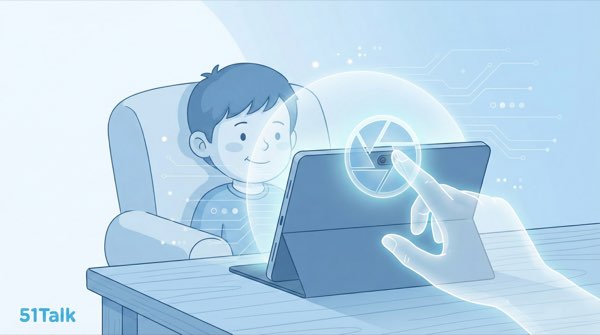 The “Unblinking Eye” Anxiety: Who Is Watching?
Opening a laptop camera is opening a window into your child’s bedroom. While visual interaction is great for teaching, it creates two major anxieties for modern parents:
-
The Security Risk: “Can the teacher record this on their personal phone? Will my child’s face end up on social media?”
-
The Comfort Risk: “My child is shy/sick/eating. Do they have to be seen to learn?”
The “Zoom Fatigue” Factor: Generic video apps (like Zoom or Skype) treat all participants as equals. They don’t easily allow a student to hide while still seeing the teacher. This constant feeling of “being watched” increases cognitive load and anxiety for children.
The Intent: Parents are looking for a “Digital Curtain.” They want the power to control when the camera is open, and the assurance that when it is, the footage is locked in a vault, not floating on the internet.
The “Camera Protocol” Audit: 4 Rules of a Safe Platform
Before you book a class, check the Terms of Service for these four specific clauses regarding video data. A safe platform protects your visual privacy by design.
1. The “Student-Choice” Rule
-
The Standard: Does the platform allow the student to turn off their camera without stopping the lesson?
-
Why it matters: A child should never be forced to be on video if they feel uncomfortable. The system should support “Audio-Only Mode” where the child can still see the teacher and slides, but remains invisible.
2. The “No Local Recording” Tech
-
The Standard: Is the teacher physically blocked from recording?
-
Why it matters: On Skype, anyone can hit “Record.” On a secure platform like Air Class, the “Record” button is disabled for teachers. The recording happens automatically on the company’s secure server, not the teacher’s hard drive.
3. The “Anti-Screenshot” Policy
-
The Standard: Are teachers contractually and technically banned from taking screenshots?
-
Why it matters: You don’t want a cute photo of your child used in a teacher’s personal marketing portfolio on Instagram. Professional platforms have zero-tolerance policies for this.
4. The “Data Expiry” Promise
-
The Standard: How long are videos kept?
-
Why it matters: You want a platform that encrypts recordings for educational review (for you) but has a policy to delete or archive them securely after a set period (e.g., the duration of the course).
Privacy Policy Showdown: Who Respects the Lens?
We analyzed the camera policies of three different educational models to see who puts privacy first.
Model A: The “Video Chat” Apps (Skype/Zoom Tutors)
-
Camera Rule: Often mandatory for connection.
-
Recording Risk: High. The tutor owns the file. They can save it to their desktop, edit it, or share it.
-
Privacy Score: 🔴 Critical Risk.
Model B: The “Group Class” Webinars
-
Camera Rule: Mandatory (to prove attendance).
-
Recording Risk: Medium. Other students in the class might screenshot your child. Peer-to-peer privacy is hard to control.
-
Privacy Score: 🟡 Medium Risk.
Model C: The “Secure Ecosystem” (51Talk)
-
Camera Rule: Flexible. Student controls the switch.
-
Recording Risk: Zero. Recordings are server-side encrypted. Teachers have “View Only” access without download rights.
-
Privacy Score: 🟢 Safe / Fort Knox.
Table: Visual Privacy Comparison
 Why 51Talk is the “Digital Curtain” for 2025
51Talk understands that privacy is a prerequisite for trust. Their proprietary software, Air Class, is built with specific privacy-enhancing technologies.
1. The “Camera Off” Button is Front & Center
In Air Class, the camera toggle isn’t hidden in settings. It’s a big button on the screen.
-
The Scenario: A hijab-wearing mother walks into the room.
-
The Action: The student clicks “Camera Off” instantly. The audio continues seamlessly. The teacher continues teaching. Privacy is preserved instantly.
2. Server-Side Encryption (No Local Files)
Teachers cannot record lessons on their devices.
-
The Tech: The video stream goes directly from the student -> 51Talk Secure Server -> Teacher. The teacher acts as a “Viewer,” not a “Host.” They cannot “Save As” the video file.
3. The “Clean Screen” Mandate
51Talk’s teacher code of conduct strictly prohibits the use of personal mobile phones to take photos of the screen.
-
Enforcement: Quality Assurance teams monitor teacher video feeds. If a teacher raises a phone to the screen, they are flagged and suspended.
4. Parent-Only Playback
While the lesson is recorded, access is gated.
-
Security: To view a playback, you must log in to the parent account. A stranger with a link cannot watch your child’s lesson. It is behind a password wall.
Real Scenarios: Privacy in Practice
Scenario A: The “Bad Hair Day” (Teenager)
-
The Issue: A 13-year-old girl wants to learn but feels self-conscious about her appearance and refuses to turn on the camera.
-
The 51Talk Fix: She takes the entire lesson in Audio Mode. The teacher focuses on her pronunciation and grammar, never pressuring her to show her face. The learning continues without the anxiety.
Scenario B: The “Cultural Boundary” (Conservative Family)
-
The Issue: Parents are uncomfortable with the idea of a male teacher seeing inside their home.
-
The 51Talk Fix: They book a Female Tutor and use a Virtual Background (blurring the room). The visual data is minimized to just the child’s face, protecting the sanctity of the home environment.
A Parent’s Guide: Configuring Maximum Privacy
Step 1: Use a Virtual Background In the Air Class settings, select “Blur Background” or choose a fun cartoon backdrop. This hides your furniture, family photos, and home layout from the camera.
Step 2: Cover the Lens When Idle Teach your child digital hygiene. When the lesson ends, close the laptop lid or use a physical camera cover.
Step 3: Audit the “Playback” Once a month, check a lesson recording. Verify that the teacher remained professional and that no one else entered the teacher’s room (ensuring their environment is also private and secure).
FAQ: Cameras & Recording
Q: If I turn off the camera, can the teacher still teach effectively? A: Yes. 51Talk teachers are trained for audio-only instruction. They will rely more on the interactive slides (clicking/dragging) and verbal checks (“Repeat after me”) rather than visual cues.
Q: Does 51Talk sell facial data? A: No. As a compliant global education company, they use video data strictly for educational delivery and quality assurance. They do not sell biometric data to third parties.
Q: Can I delete a recording permanently? A: Yes. If you have a specific reason to wipe a lesson record, you can contact customer support to request a data purge under privacy regulations.
Final Verdict
Your child’s image belongs to you, not the internet.
In 2025, the safest platform is one that gives you Ownership of the lens. 51Talk wins by decoupling “Learning” from “Being Seen.” With robust encryption, strict teacher policies, and the freedom to turn the camera off, it offers education without exposure.
Control the camera. Protect the child.

Leave a Reply